

















Affiliate disclosure: This article contains affiliate links. If you click and purchase, we may earn a commission at no extra cost to you.
Table of Contents
◉Reader Roadmap ◉Definitions That Matter (So the UI Makes Sense) ◉Prerequisites ◉Step-by-Step: Create a “Master Creative,” Then Adapt It for Every Platform ◉Mini Case Study: A Realistic Campaign Pack You Can Copy ◉Pros, Cons, and Risk Management (Especially With AI) ◉Common Mistakes + Troubleshooting ◉FAQ ◉Conclusion: Ship Faster With a Repeatable Campaign Pack Workflow ◉Sources
Adobe Express has evolved from a “quick graphic” tool into a practical campaign production studio—especially if your job is to ship consistent content across multiple channels without spending your whole day resizing, reformatting, and hunting for brand assets.
In this tutorial, you’ll create a reusable campaign pack: a base creative concept (image + copy + layout) that you can quickly adapt into platform-ready variants (think Instagram Reel/Story, TikTok video, LinkedIn video ad, and static companion posts). You’ll use newer Express capabilities like AI Assistant (beta) for conversational edits, social safe zones for cleaner cropping across placements, rulers and guides for precise layout alignment, and brand extraction from uploaded images to accelerate brand setup. Along the way, you’ll also learn how to choose between Adobe’s Firefly models and partner models depending on whether you’re ideating or preparing assets for production work. (Adobe Help Center, 2025; Adobe Newsroom, 2025)
You don’t need to be a designer to follow this—but you do need a clear goal: one campaign message, one target audience, and at least a few brand assets (logo, colors, fonts, or a brand board image).
Reader Roadmap
• Prerequisites & setup so you don’t get stuck mid-project
• A step-by-step workflow to build one “master” creative and adapt it across platforms
• How to use AI Assistant without losing brand control (and when to turn it off)
• A practical mini case study you can copy for your next launch or promo
• Troubleshooting for the most common layout, export, and publishing issues
• FAQ + next-step checklist to ship your pack faster next time
Don’t have Adobe Express yet?
Grab Adobe Express so you can follow this step-by-step campaign pack tutorial and ship platform-ready creatives faster.
Get Adobe ExpressDefinitions That Matter (So the UI Makes Sense)
Campaign pack: A small set of coordinated assets built from one creative “source of truth” (your master design), then resized and adjusted for each platform.
Safe zones: On-platform “visible areas” where text and key visuals won’t get covered by UI (like buttons, captions, or profile overlays). In Express, safe zones can be displayed as editable overlays while you design. (Adobe Help Center, 2025)
Brand kit / Brand in Express: A saved set of your logo(s), colors, and fonts that you can apply quickly to any design. Express can also extract these from uploaded images (beta). (Adobe Help Center, 2025)
Partner models: Non-Adobe generative models that can be available inside Adobe products alongside Firefly models. They’re useful for experimentation, but you should treat them differently for commercial, client, or brand-sensitive work. (Adobe Help Center, 2025; Reuters, 2025)
Prerequisites
Before you start, gather:
• One campaign goal (example: “Drive sign-ups for a webinar” or “Promote a product discount”)
• One landing page URL (or a placeholder)
• One brand board image (optional, but recommended) containing logo/colors/fonts
• Logo file(s)—SVG is ideal if you have it; PNG is fine if you don’t
• A short offer statement (one sentence) + one CTA (call to action)
Account notes:
• AI Assistant is available in limited beta and (at least during beta) is positioned for Express Premium users, desktop, and U.S. English. (Adobe Help Center, 2025; Adobe Newsroom, 2025)
• Social scheduling, caption generation, and analytics live inside Express’s Schedule experience. (Adobe Help Center, 2025)

Build a repeatable “campaign pack” in Adobe Express—then resize for every platform in minutes
Use brand setup, safe zones, guides, and quick variants to ship consistent creatives faster—without bouncing between tools.
Start with Adobe ExpressStep-by-Step: Create a “Master Creative,” Then Adapt It for Every Platform
1) Set up your brand in minutes (even if you’re starting from scratch)
If you already have a clean brand kit in Express, you can skip to Step 2. Otherwise, do this first.
1. Go to Express Home and open Brands.
2. Choose Create brand → Extract brand from upload (beta).
3. Upload a JPG/PNG that includes your colors, logo, and/or typography samples. Add more images if needed.
4. Name the brand and save it after extraction. (Adobe Help Center, 2025)
This matters because it turns “brand consistency” into a one-click habit instead of a constant manual decision.
In the image above, you’re looking for detected colors and fonts that match your real brand. If the extraction misses your primary font or pulls an odd “almost-brand” color, you can correct those now before you build any campaign assets.
Pro tip: If you already use Creative Cloud Libraries, you can also build a brand kit from an existing library and apply it repeatedly. (Adobe, 2024)
2) Migrate any old templates you rely on (so they don’t break later)
If your team stores reusable designs as templates inside Brands, Adobe has been moving template organization into Projects.
1. Open the help flow for moving templates to Projects and migrate your most-used templates first.
2. Prioritize templates you reuse monthly (social frames, promo layouts, logo lockups).
3. Confirm permissions and sharing still work after the move. (Adobe Help Center, 2025)
Important timing detail: templates not moved by February 28, 2026 may no longer be usable—so treat this as preventive maintenance, not busywork. (Adobe Help Center, 2025)
3) Create your “master” design (the asset you’ll duplicate and resize)
Your master should be built for clarity, not for a specific placement.
1. From Express Home, choose a format that’s easy to repurpose (a square post or a presentation slide layout works well).
2. Apply your brand (colors/fonts/logo) immediately so everything inherits the right styling.
3. Add four core layers:
• Headline (benefit-focused)
• Supporting line (proof, context, or urgency)
• Primary visual (photo, illustration, or product mockup)
• CTA (button-style text, plus URL/handle if relevant)
Where AI Assistant helps: If you have a rough layout but need quick refinements, open AI Assistant (beta) and prompt for specific, reversible edits—like “make the headline more legible,” “increase contrast,” or “move the logo to the top-right and align it.” AI Assistant is designed to help you iterate by describing changes in natural language, then you can switch back to manual editing when needed. (Adobe Help Center, 2025; Adobe Newsroom, 2025)
Keep control: If you’re working with strict brand guidelines, use AI Assistant for micro-edits, not for inventing the entire system.
4) Lock your layout precision with rulers, guides, and alignment
This is the difference between “good enough” and “looks professionally produced.”
1. Open your master design.
2. Go to File → Rulers and guides → Show Rulers.
3. Add guides from the ruler edge and position them for consistent margins.
4. If you’re happy with placement, lock guides so nothing drifts while you duplicate pages. (Adobe Help Center, 2025)
In the image above, the guides create a repeatable margin system. This makes resizing much easier because you can quickly realign elements to known “safe” positions instead of eyeballing every variant.
5) Turn on Social Safe Zones for ad and post placements
Now you’ll design with platform UI in mind—before it ruins your layout.
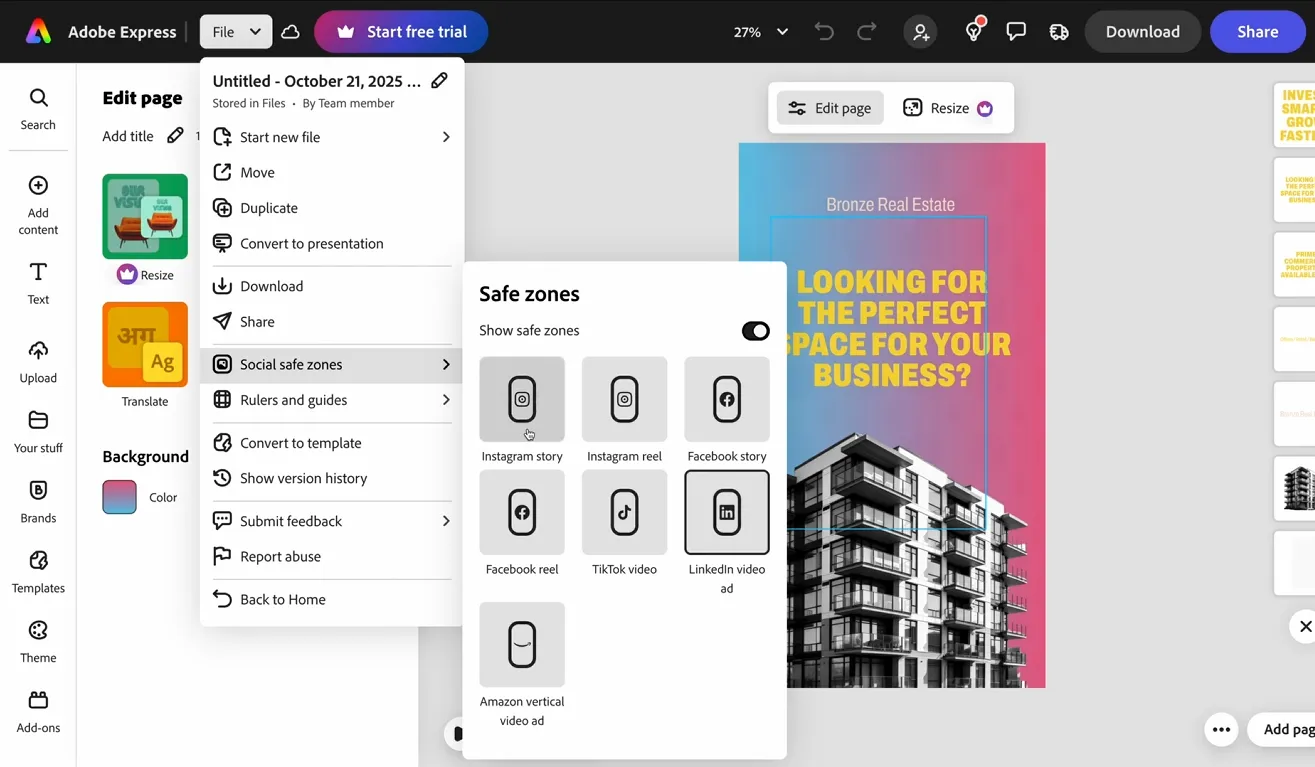
1. In a social design, open File → Social safe zones → Show safe zones.
2. Choose the format you’re building (e.g., Instagram Reel, TikTok Video, LinkedIn Video Ad).
3. Keep your headline, face/product focus, and CTA inside the visible safe area. (Adobe Help Center, 2025)
The safe zone overlay won’t appear in exports—it’s a design-time guide. (Adobe Help Center, 2025)
Use this overlay aggressively for short-form video placements. It’s much cheaper to adjust a layout now than to discover later that your CTA is hidden behind UI buttons.
6) Bring in clean logos and icons (SVG when possible)
If you have SVG brand assets, use them—your exports will stay crisp at any size.
• Express accepts SVGs, with specific import constraints (for example, size limits may apply depending on the workflow). (Adobe Help Center, 2025)
• If you’re using Adobe Experience Manager (AEM) assets, there’s a guided SVG import workflow with a stated file size limit for SVGs. (Adobe Help Center, 2025)
If you only have PNG logos, you can still make this work—just keep them high-resolution and avoid repeated resizing.
7) Generate or refine imagery with the right model (ideation vs production)
Express can leverage Adobe’s own models and (in some contexts) partner models.
Use this decision rule:
• Production-safe / client work: Start with Adobe Firefly models, which Adobe has positioned around commercial safety for production workflows. (Reuters, 2025)
• Experimental ideation: Try partner models when you need different aesthetics or prompt behavior. Adobe has expanded access to third-party models (including OpenAI and Google options) within Firefly experiences and across the ecosystem. (Reuters, 2025; Adobe Help Center, 2025)
Here’s a simple guide based on how Adobe describes model “qualities”:
| Model family | Best used for | Why you’d pick it |
|---|---|---|
| Firefly models | Brand-safe production assets | Positioned for commercial safety and production workflows (Reuters, 2025) |
| Google Imagen / Gemini image models | Bright, vibrant visuals; prompt accuracy; functional design | Adobe describes Imagen as “bright, vibrant” and Gemini as strong for prompt accuracy / functional design (Adobe Help Center, 2025) |
| OpenAI image model (via Adobe ecosystem) | Alternative ideation style; different prompt behavior | Offered as an additional choice among models (Reuters, 2025) |
| FLUX models | High-quality stylized imagery options | Available as partner models for certain Firefly workflows (Adobe, 2025) |
Also note: partner models may consume different amounts of generative credits inside Adobe’s system. (Adobe Help Center, 2025)
Practical workflow tip: Generate 6–12 candidate images early, pick one winner, and stop generating. You’ll keep creative consistent and avoid “style drift” across assets.
8) Add motion: animations and simple video timing
If your campaign includes short-form video or animated posts:
1. Select an object (headline, product, shape).
2. Choose Animation and pick an In/Out/Loop style.
3. Adjust intensity and timing; for some animations you can start elements “outside page” for smoother entrances and natural motion. (Adobe Help Center, 2025)
If you’re editing video scenes inside Express, newer improvements include an “all layers” timeline view called out in Express release notes—use it when you need timing precision across multiple elements. (Adobe Help Center, 2025)
9) Duplicate and resize into platform-specific variants
Now you’ll convert the master into a pack.
Create at least these variants:
• Instagram Reel / Story
• TikTok Video
• LinkedIn Video Ad
• One static post companion (square or portrait)
Workflow:
1. Duplicate your master page for each placement.
2. Resize to the target format.
3. Turn on safe zones for that format and re-check key elements.
4. Re-align using your guides so the pack stays consistent. (Adobe Help Center, 2025)
Use AI Assistant strategically here: Prompts like “resize this for LinkedIn video ad and keep all text inside safe zones” can speed up the first pass, then you polish manually. (Adobe Help Center, 2025)
10) Write captions inside Express (and keep them on-brand)
Express includes a caption-writing workflow inside Content Scheduler.
1. Go to Schedule.
2. Create a new draft post.
3. Use the caption generation tool to draft options.
4. Edit for brand voice and compliance (especially for ads). (Adobe Help Center, 2025)
For better outputs, follow Adobe’s own caption prompt tips—iterate variations, specify tone, and include context like audience and goal. (Adobe Help Center, 2025)
11) Publish and measure performance without leaving the app
If you’re using the Metricool integration:
1. Go to Schedule.
2. Open the Analytics tab and choose Metricool. (Adobe Help Center, 2025)
3. Review what content is actually performing and adjust your next batch.
Adobe has positioned Express for Ads as “design once and publish broadly,” with add-ons and integrations (including Metricool and Bitly) to reduce tool switching. (Adobe, 2025)
Mini Case Study: A Realistic Campaign Pack You Can Copy
Scenario: You’re promoting an “AI Productivity Toolkit” download.
Master creative concept:
• Headline: “Cut Busywork by 30 Minutes a Day” (keep it benefit-first)
• Subhead: “A starter toolkit of automations + templates”
• Visual: A clean “toolkit” mockup image
• CTA: “Download Free”
Pack build-out:
• Reel/TikTok versions: animate headline + subtle motion on mockup
• LinkedIn video ad: keep more whitespace, larger font sizes, and a calmer animation
• Static post companion: square layout with strong CTA and link/QR
What makes it work:
• Brand consistency is enforced by the Brand kit (colors/fonts)
• Legibility is protected by safe zones and locked guides
• Iterations are fast because AI Assistant handles micro-edits and quick formatting, while you retain final judgment (Adobe Help Center, 2025; Adobe Newsroom, 2025)
Pros, Cons, and Risk Management (Especially With AI)
Pros
• Faster iteration through conversational edits and in-app publishing workflows (Adobe Help Center, 2025)
• Fewer “format surprises” because safe zones make constraints visible early (Adobe Help Center, 2025)
• Better consistency when your brand kit is applied from the start (Adobe Help Center, 2025)
Cons / risks
• AI-generated visuals can drift from brand style if you over-generate or change models midstream
• Team workflows can break if templates aren’t migrated and permissions aren’t validated (Adobe Help Center, 2025)
• Partner model usage may affect credit consumption and governance decisions (Adobe Help Center, 2025)
Mitigations
• Pick one visual style per campaign and lock it (save a “style reference” page)
• Migrate templates proactively (especially before the February 28, 2026 usability cutoff) (Adobe Help Center, 2025)
• Use Firefly-first for production-sensitive work; reserve partner models for ideation or internal drafts (Reuters, 2025)
Common Mistakes + Troubleshooting
Mistake 1: Your CTA gets covered by platform UI
Diagnosis: Export looks fine, but once posted, buttons/captions hide key text.
Fix: Enable Social safe zones for the correct format and re-position CTA within the visible area. (Adobe Help Center, 2025)
Mistake 2: Elements don’t align consistently across variants
Diagnosis: Every resized version looks “slightly off.”
Fix: Turn on rulers and guides, create consistent margins, and lock them before duplicating pages. (Adobe Help Center, 2025)
Mistake 3: Your “brand colors” vary across assets
Diagnosis: Similar-but-not-identical hex values appear across different pages.
Fix: Import or define your color theme once (from Adobe Color or your Brand kit), then apply it consistently. (Adobe Help Center, 2025)
Mistake 4: Templates disappear or sharing breaks
Diagnosis: A teammate can’t access a template or it’s no longer editable.
Fix: Move templates into Projects and verify permissions after migration. Also note the February 28, 2026 cutoff for templates that aren’t moved. (Adobe Help Center, 2025)
Mistake 5: You burn credits generating too many variations
Diagnosis: You keep regenerating visuals and end up with inconsistent style + wasted time.
Fix: Timebox generation (example: 10 minutes max), pick one winner, and shift to editing. Also check partner model credit usage differences. (Adobe Help Center, 2025)
FAQ
Conclusion: Ship Faster With a Repeatable Campaign Pack Workflow
A strong Adobe Express workflow isn’t about discovering more features—it’s about building a repeatable production loop: brand setup → master creative → safe-zone layout → variant resizing → captions → scheduling → analytics feedback.
If you do just three things after reading this, make them these:
• Extract or clean up your Brand kit so every new project starts consistent (Adobe Help Center, 2025)
• Build your master with locked guides and safe zones before you duplicate anything (Adobe Help Center, 2025)
• Use AI Assistant for specific edits, not vague “make it better” prompts (Adobe Help Center, 2025)
Quick checklist for your next campaign pack
• Brand kit applied (colors + fonts + logos)
• Templates migrated to Projects if needed (deadline awareness)
• Master creative built (headline, subhead, visual, CTA)
• Rulers/guides on + locked
• Safe zones on for each placement
• 3–5 platform variants exported
• Captions drafted + edited in brand voice
• Scheduled + analytics plan defined
Get Adobe Express and build your next campaign pack
Sources
• Adobe Introduces New AI Assistant in Adobe Express (Adobe Newsroom, 2025)
— https://news.adobe.com/news/2025/10/adobe-max-2025-express-ai-assistant
• AI Assistant overview (Adobe Help Center, 2025)
— https://helpx.adobe.com/express/web/ai-assistant/adobe-express-ai-assistant-overview.html
• Use rulers and guides in designs (Adobe Help Center, 2025)
— https://helpx.adobe.com/express/web/arrange-layers-and-pages/rulers.html
• Set safe zones for social media posts (Adobe Help Center, 2025)
• Move templates to Projects (Adobe Help Center, 2025)
• Create brands from uploaded images (Adobe Help Center, 2025)
— https://helpx.adobe.com/express/web/brands-libraries-projects/create-manage-brands/brand-setup.html
• Partner models in Adobe products (Adobe Help Center, 2025)
• Adobe adds AI models from OpenAI, Google to its Firefly app (Reuters, 2025)
— https://www.reuters.com/business/adobe-adds-ai-models-openai-google-its-firefly-app-2025-04-24/
• What’s new in Adobe Express (Adobe Help Center, 2025)
— https://helpx.adobe.com/ca/express/web/whats-new/new-features/whats-new.html
• Animate designs in Adobe Express (Adobe Help Center, 2025)
— https://helpx.adobe.com/express/web/audio-and-animation/animate-design.html
• Generate captions for social media using generative AI (Adobe Help Center, 2025)
— https://helpx.adobe.com/express/web/publish-and-share/share-to-social-media/caption-writer.html
• Access social media analytics in Adobe Express (Adobe Help Center, 2025)
• Streamline and scale content with Adobe Express for ads (Adobe, 2025)
— https://business.adobe.com/uk/blog/new-adobe-express-for-ads-helps-small-businesses-stand-out
• Adobe Express platform updates for MAX 2024 (Adobe Developer Blog, 2024)